Smart Lighting
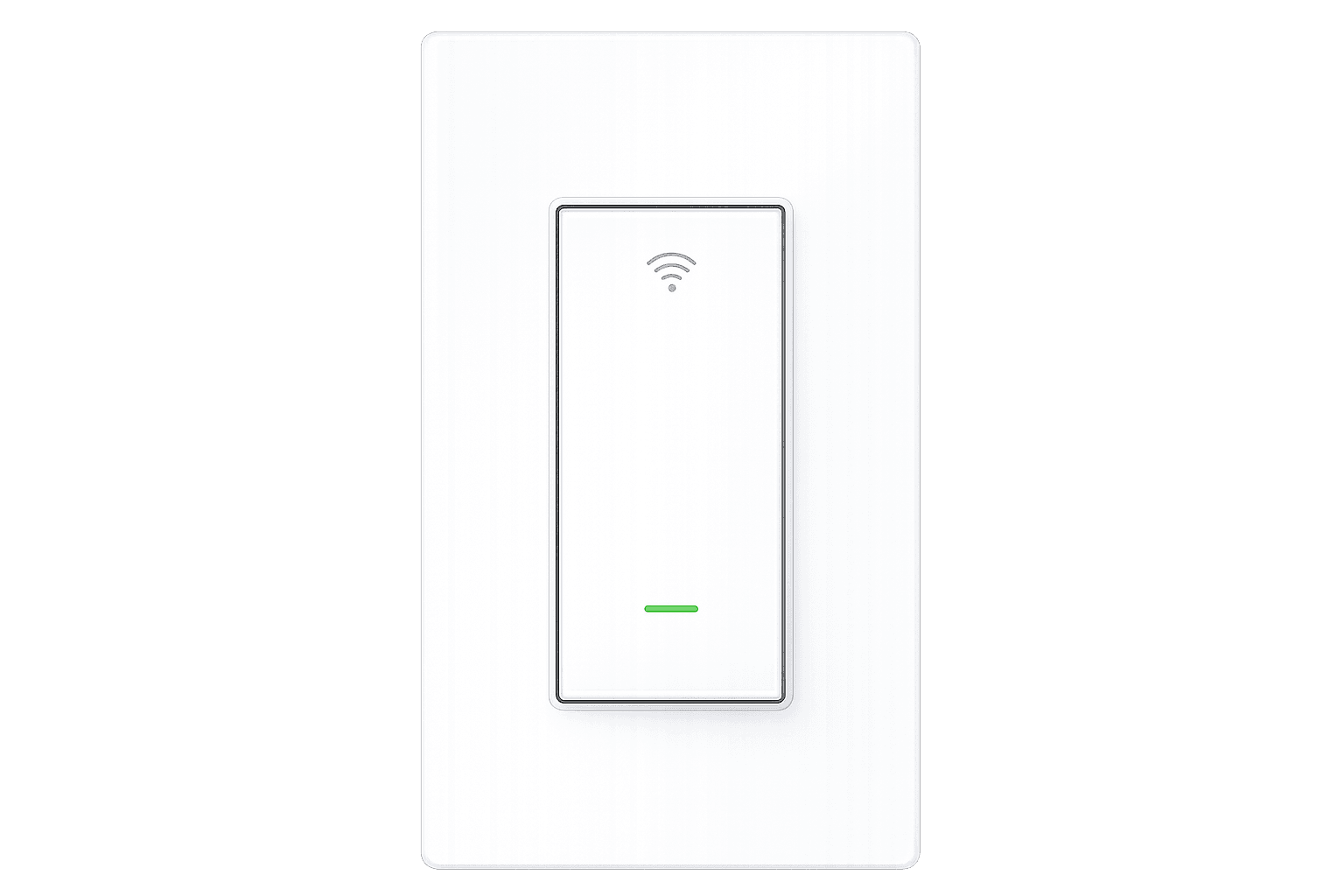
Devynex SW5 Wi-Fi Smart Switch
Single-pole smart lighting control with no hub required, 2.4GHz Wi-Fi, schedules, and voice assistant support.
$20
Available for preorderAmazon Alexa
Google Assistant
Smart Life App
2.4 GHz Wi-Fi
Neutral Required
Single Pole
Before you begin
Check the essentials first.
The available SW5 guides identify the installation and setup basics customers should confirm before installation or pairing.
Single Pole
Confirm supported single-pole wiring before installation.
Neutral Required
Confirm neutral wire availability before installation.
2.4 GHz Wi-Fi
Ensure your phone and device are connected to 2.4 GHz Wi-Fi.
Smart Life App
Download Smart Life from the App Store, Google Play, or the manual QR code.
Phone Compatibility
The manual lists iOS 11+ or Android 6.0+ for a smooth connection.
Power Off
Turn power off at the breaker before installation.
Product overview
Know the switch before installation.
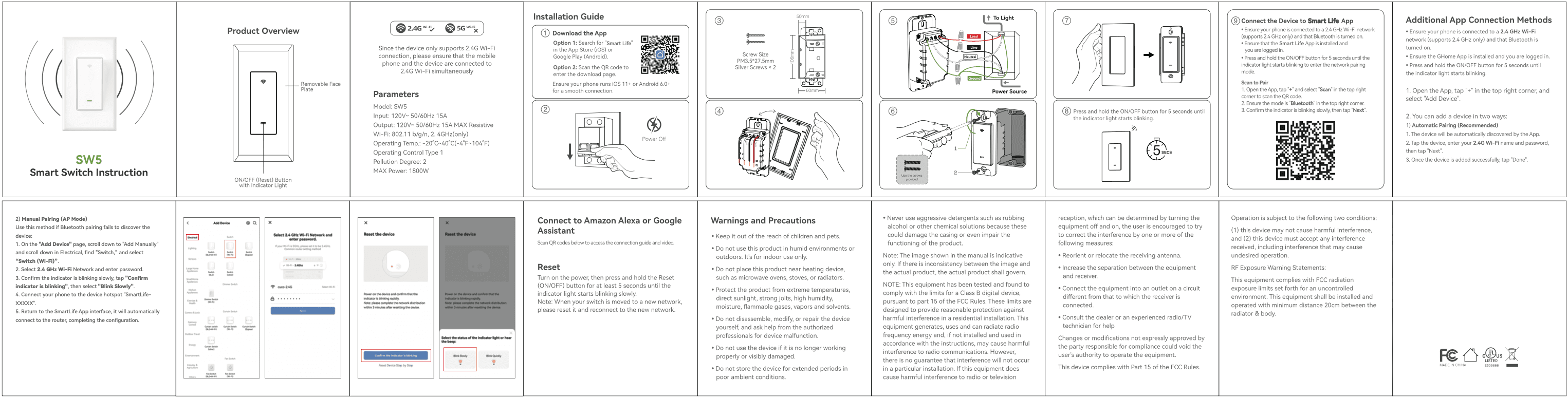
The official manual identifies the removable face plate, ON/OFF reset button, indicator light, rear view, and product parameters.
Front View
Removable face plate with ON/OFF button and indicator light.
Rear View
Rear wiring area shown in the installation sequence.
Reset Button
The ON/OFF button also functions as the reset button.
Indicator Light
Hold the ON/OFF button until the indicator starts blinking.
Button Function
ON/OFF control and reset/pairing entry are shown in the manual.
Installation overview
A simple path before the detailed wiring guide.
This overview summarizes the official SW5 User Manual. Use the complete manual for detailed wiring reference.
- 01
Download the Smart Life app or scan the manual QR code.
- 02
Power off at the breaker.
- 03
Confirm the included silver screws and mounting dimensions shown in the guide.
- 04
Remove the face plate.
- 05
Wire Load, Line, Neutral, and Ground as shown in the single-pole diagram.
- 06
Mount the switch with the included screws.
- 07
Install the face plate.
- 08
Hold the ON/OFF button for 5 seconds until the indicator starts blinking.
Wiring Diagram
Smart Life QR Code
Smart Life setup
Pair the SW5 after installation.
The available guides identify Smart Life as the app and direct customers to pair with a 2.4GHz Wi-Fi network after restoring power.
- Step 1
Ensure the phone is connected to a 2.4 GHz Wi-Fi network and Bluetooth is turned on.
- Step 2
Open Smart Life and tap +.
- Step 3
Scan the QR code or select Add Device.
- Step 4
Use Bluetooth pairing when the indicator is blinking.
- Step 5
Enter the 2.4 GHz Wi-Fi name and password.
- Step 6
Tap Done once the device is added successfully.
Smart Life App Screens
Verified product details
Important details, clearly stated.
Smart Life App
The SW5 pairs in the Smart Life app after installation.
2.4 GHz Wi-Fi
The official guide identifies 2.4 GHz Wi-Fi as the supported network.
Bluetooth Pairing
The guide instructs customers to turn on Bluetooth for pairing.
Manual AP Mode
If automatic pairing is not used, the guide provides a manual AP Mode path.
Amazon Alexa
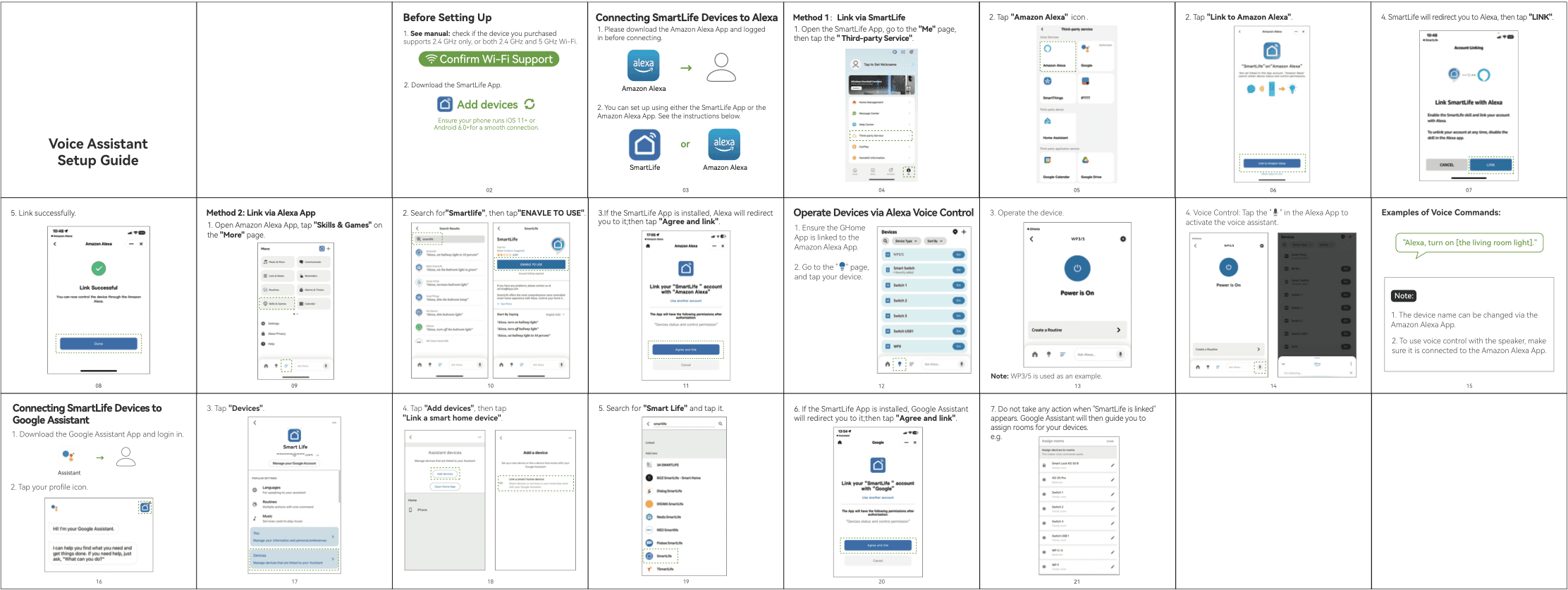
The voice assistant guide provides SmartLife and Alexa app linking methods.
Google Assistant
The voice assistant guide provides Google Assistant linking and room assignment.
Voice assistant setup
Amazon Alexa
- Download the Amazon Alexa app and log in before connecting.
- In SmartLife, open Me, then Third-party Service.
- Tap the Amazon Alexa icon.
- Tap Link to Amazon Alexa.
- When SmartLife redirects to Alexa, tap LINK.
- Use Alexa voice control after linking succeeds.
Alexa app method
- Open Amazon Alexa and go to Skills & Games from More.
- Search for SmartLife.
- Tap ENABLE TO USE.
- If SmartLife is installed, tap Agree and link.
Voice assistant setup
Google Assistant
- Download the Google Assistant app and log in.
- Tap your profile icon.
- Tap Devices.
- Tap Add devices, then Link a smart home device.
- Search for Smart Life and tap it.
- If redirected, tap Agree and link.
- Follow Google Assistant guidance to assign rooms for your devices.
Manual Pairing (AP Mode)
- 1On the Add Device page, scroll to Add Manually.
- 2Open Electrical, choose Switch, then select Switch (Wi-Fi).
- 3Select the 2.4 GHz Wi-Fi network and enter the password.
- 4Confirm the indicator is blinking, then select Blink Slowly.
- 5Connect your phone to the device hotspot named SmartLife-XXXXX.
- 6Return to the Smart Life app so it can connect to the router and complete configuration.
Alexa Setup Screens
Google Assistant Screens
Reset
Factory reset and reconnect.
Turn on the power, then press and hold the Reset (ON/OFF) button for at least 5 seconds until the indicator starts blinking slowly. When the switch is moved to a new network, reset it and reconnect to the new network.
QR codes
Scan directly from the official guide.
The official SW5 documentation includes QR codes for the Smart Life download page and the voice assistant connection guide.
Smart Life QR Code
Assistant Guide QR Code
Safety
Read before touching wiring.
Safety guidance below is summarized from the official SW5 User Manual.
Disconnect power at the breaker before touching wiring.
Use indoor installation only.
Keep it out of reach of children and pets.
Do not use this product in humid environments or outdoors.
Do not place it near heating devices such as microwave ovens, stoves, or radiators.
Protect it from extreme temperatures, direct sunlight, strong jolts, high humidity, moisture, flammable gases, vapors, and solvents.
Do not disassemble, modify, or repair the device yourself.
Do not use the device if it is no longer working properly or is visibly damaged.
Do not store the device for extended periods in poor ambient conditions.
Do not use aggressive detergents, rubbing alcohol, or chemical solutions.
Changes or modifications not expressly approved by the party responsible for compliance could void the user's authority to operate the equipment.
Operation is subject to the two conditions listed in the FCC statement in the official guide.
If interference occurs, reorient or relocate the receiving antenna, increase separation, use a different circuit, or consult a qualified radio/TV technician.
Install and operate with at least 20cm between the radiator and body.
Technical specifications
Official SW5 parameters.
Product parameters are presented from the official installation guide for easy scanning before installation.
- Model
- SW5
- Input
- 120V~ 50/60Hz 15A
- Output
- 120V~ 50/60Hz 15A MAX Resistive
- Wi-Fi
- 802.11 b/g/n, 2.4GHz only
- Operating Temperature
- -20°C~40°C (-4°F~104°F)
- Operating Control
- Type 1
- Pollution Degree
- 2
- MAX Power
- 1800W
Compatibility
- 2.4GHz Wi-Fi networks
- Smart Life app
- Amazon Alexa
- Google Assistant
- Single-pole lighting circuits
Installation Requirements
- Single-pole installation
- Neutral wire required
- 2.4 GHz Wi-Fi required for setup
- Smart Life app installed and logged in
- iOS 11+ or Android 6.0+ phone compatibility
- Power must be turned off before installation
Frequently Asked Questions
Does the SW5 require a hub?
No. The SW5 connects directly to a 2.4GHz Wi-Fi network.
Can I use it with Alexa or Google Assistant?
Yes. After setup in the Smart Life app, you can connect compatible voice assistants.
Does installation require a neutral wire?
Yes. The SW5 is designed for installations where a neutral wire is available.
Is live checkout enabled?
No. You can build a cart and review payment options, but live payment processing is intentionally disabled.
Need help?
Support is close by before and after purchase.
Review the documents, contact support, or visit the support center before adding the SW5 to your cart.